Read papers the way they deserve to be read.
A desktop PDF viewer that guides high-magnification reading with deep-learning layout analysis — line by line, block by block. Built for the calm, sustained reading of dense academic papers.
- Desktop app for Linux & Windows
- Free & open source (MIT)
- AI layout model bundled in


What it is
A reading room for dense PDFs
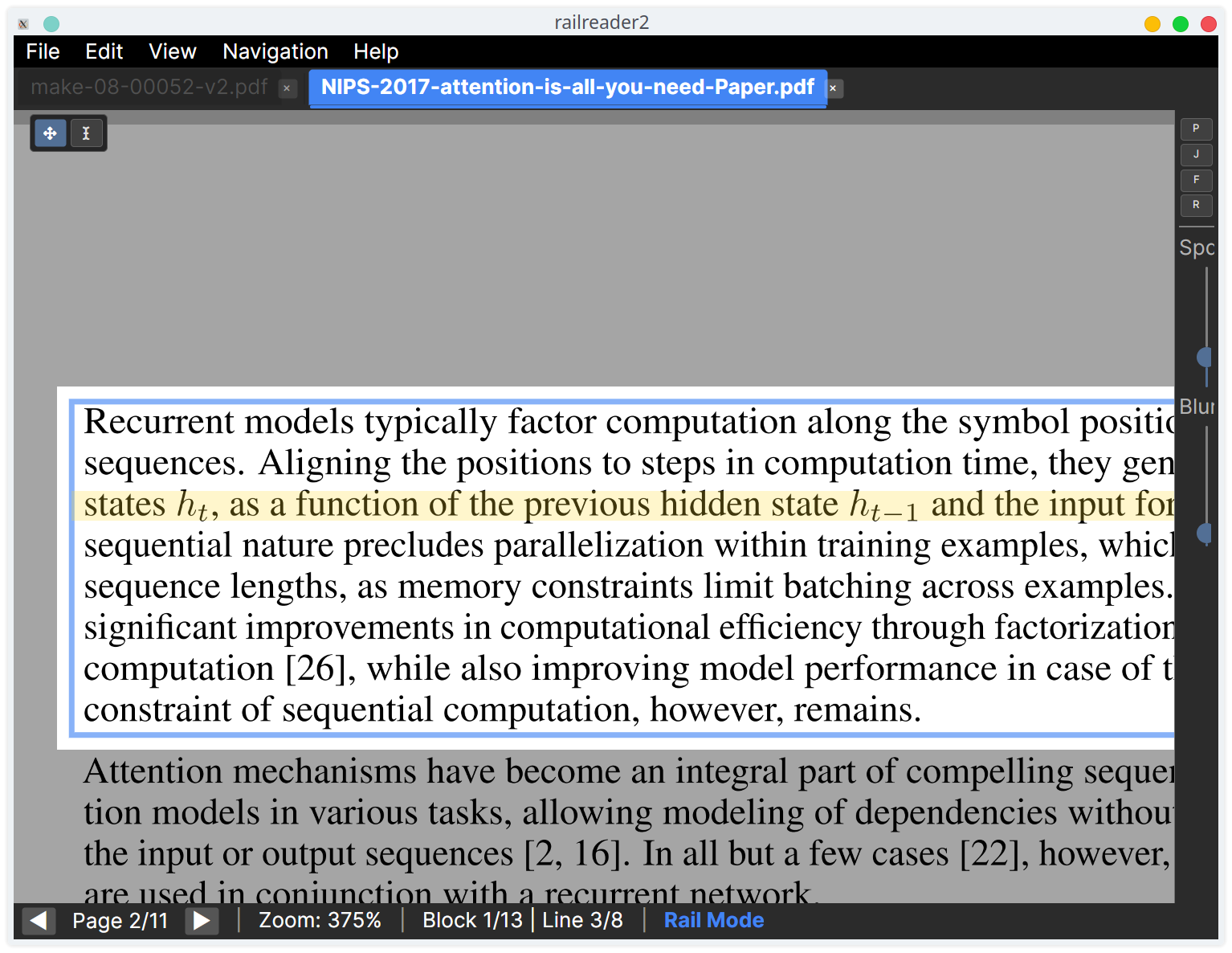
railreader2 is a desktop PDF viewer for reading dense academic documents at high magnification. It uses deep-learning layout analysis to understand each page's structure — text, headings, figures, tables, equations — then guides you through it line by line, block by block.
- Built for academic reading Papers packed with equations, tables, and multi-column layouts, read in comfort at 3× zoom and above.
- Structure-aware, not a magnifier It understands the document, so navigation follows the text instead of fighting it.
- Free & open source Native apps for Linux and Windows, with the AI layout model bundled in.
Everything it does
Built around your document
A focused reading environment, not a screen magnifier — every feature works with the page's real structure.
Layout analysis
It reads the page before you do
A deep-learning model maps every page — text, headings, figures, tables, equations — and works out the reading order. Everything else builds on that.
Docling Heron by default, or PP-DocLayoutV3 as a drop-in alternative.
Scanned documents work too: opt-in OCR recovers the missing text layer — straightening a crooked scan as it goes — so rail reading, search, and selection behave as they do on a born-digital page.
Rail reading
One line at a time
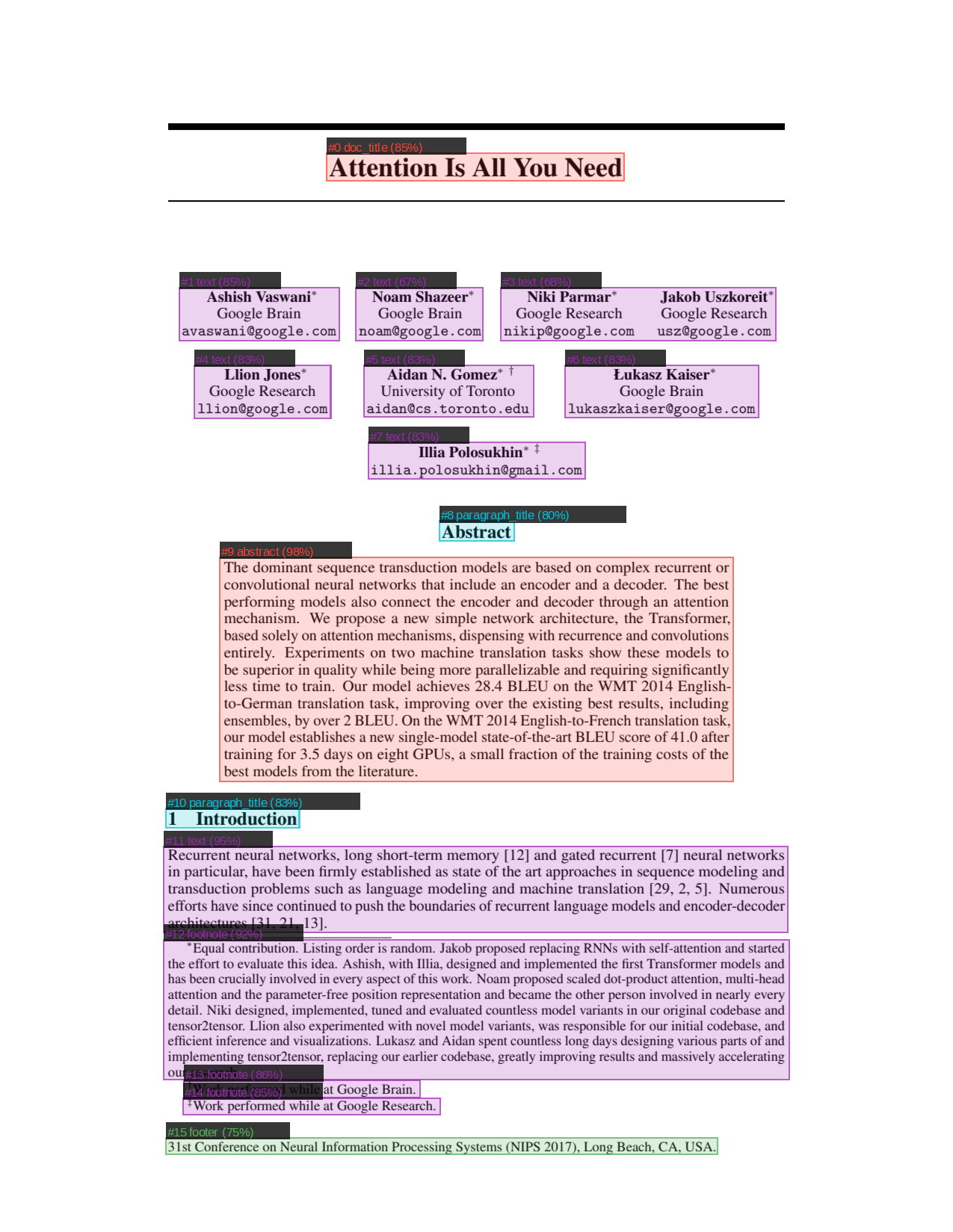
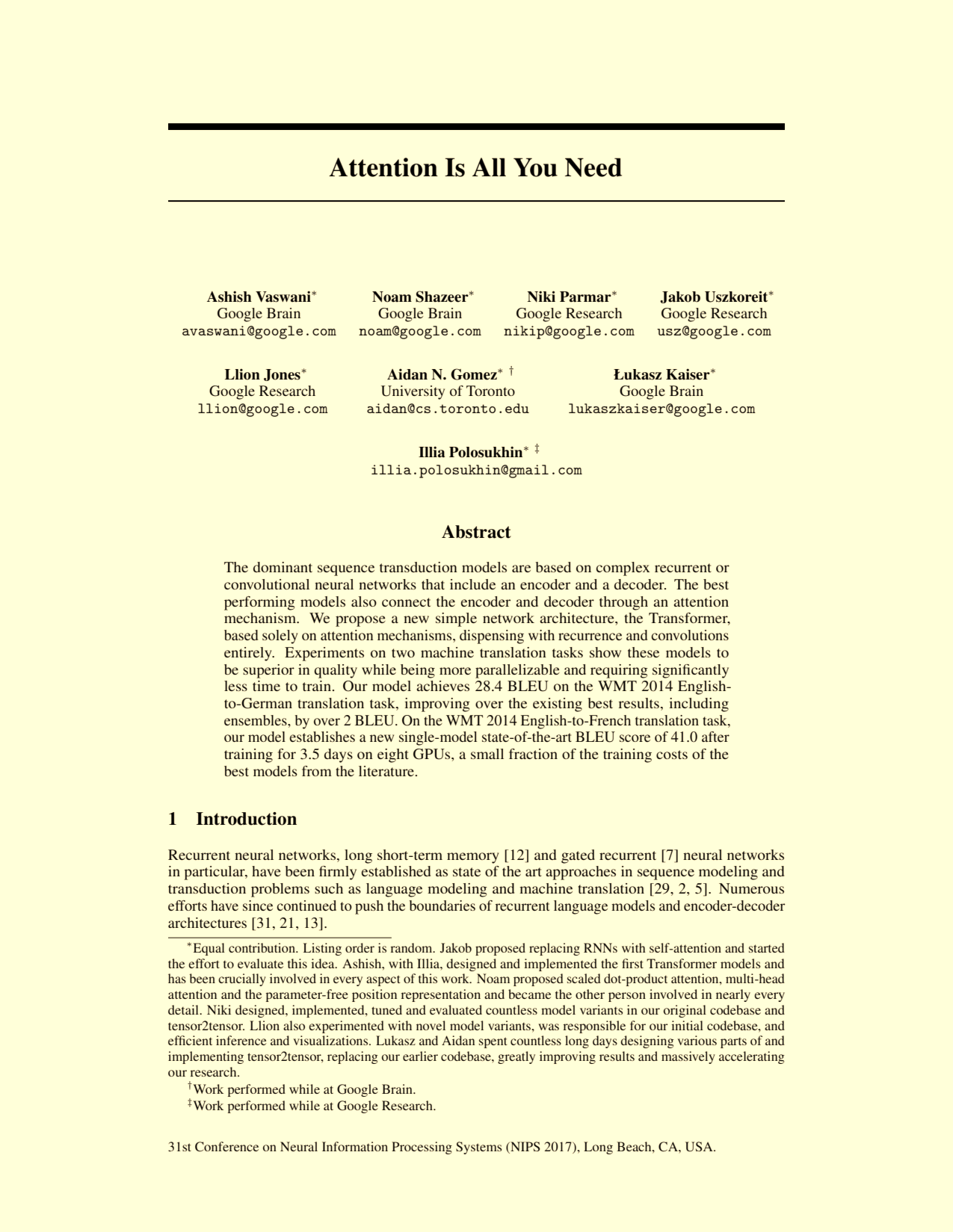
Past your zoom threshold, navigation locks to the detected blocks and advances line by line. Optional line-focus dimming fades all but the current line, so your eye never loses its place.
Hold Ctrl to free-pan a figure; release to snap back.
Visual comfort
Tuned to your eyes
GPU colour filters — amber, high-contrast, high-visibility, invert — on the page only, at any intensity. Each document keeps its own; press C to cycle.
Find
Anything, in seconds
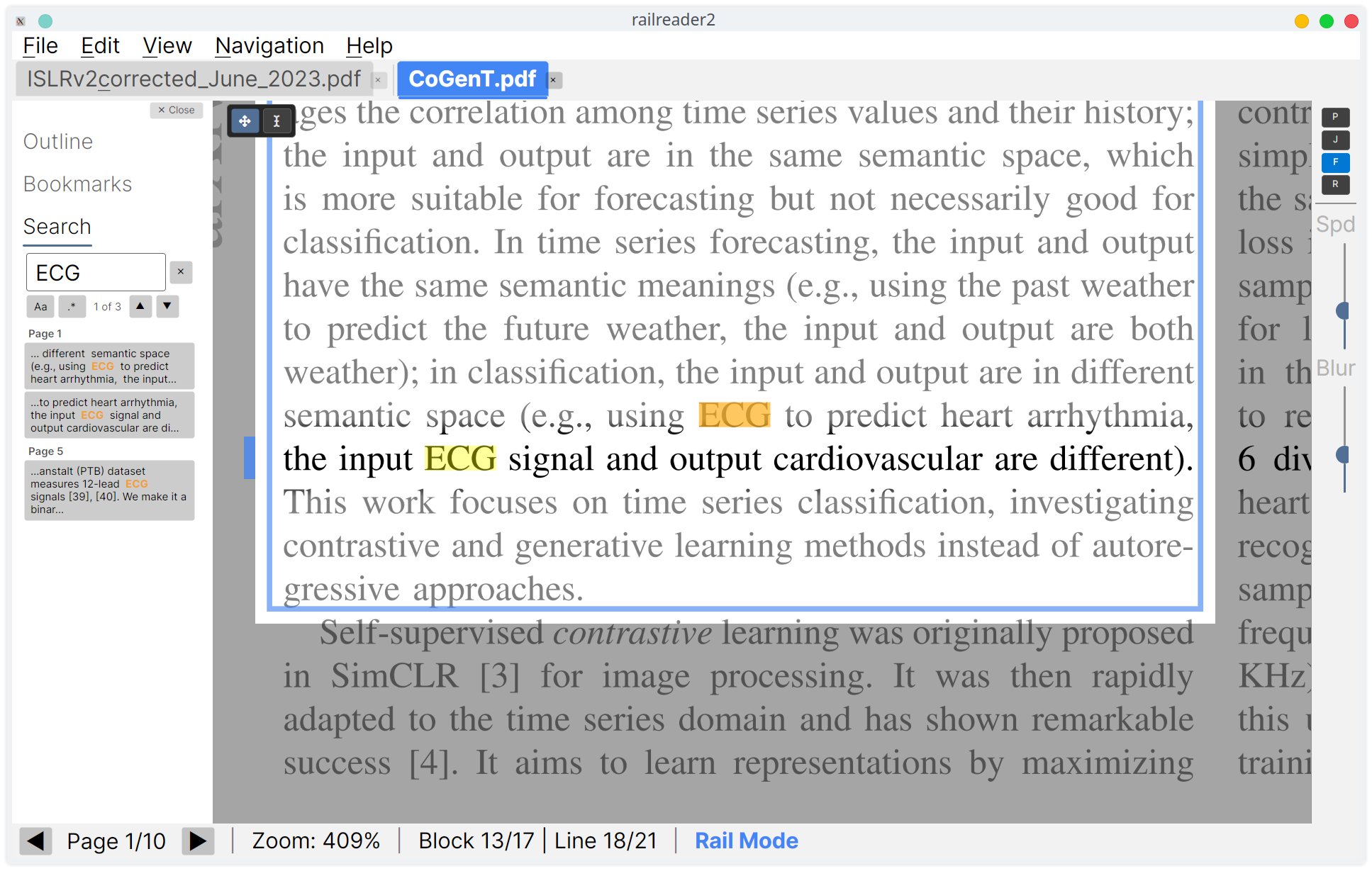
Full-text search in the side panel, grouped by page with context snippets and on-page highlights. Regex and case toggles; step between hits with F3.
Mark it up
Highlights, notes, and ink
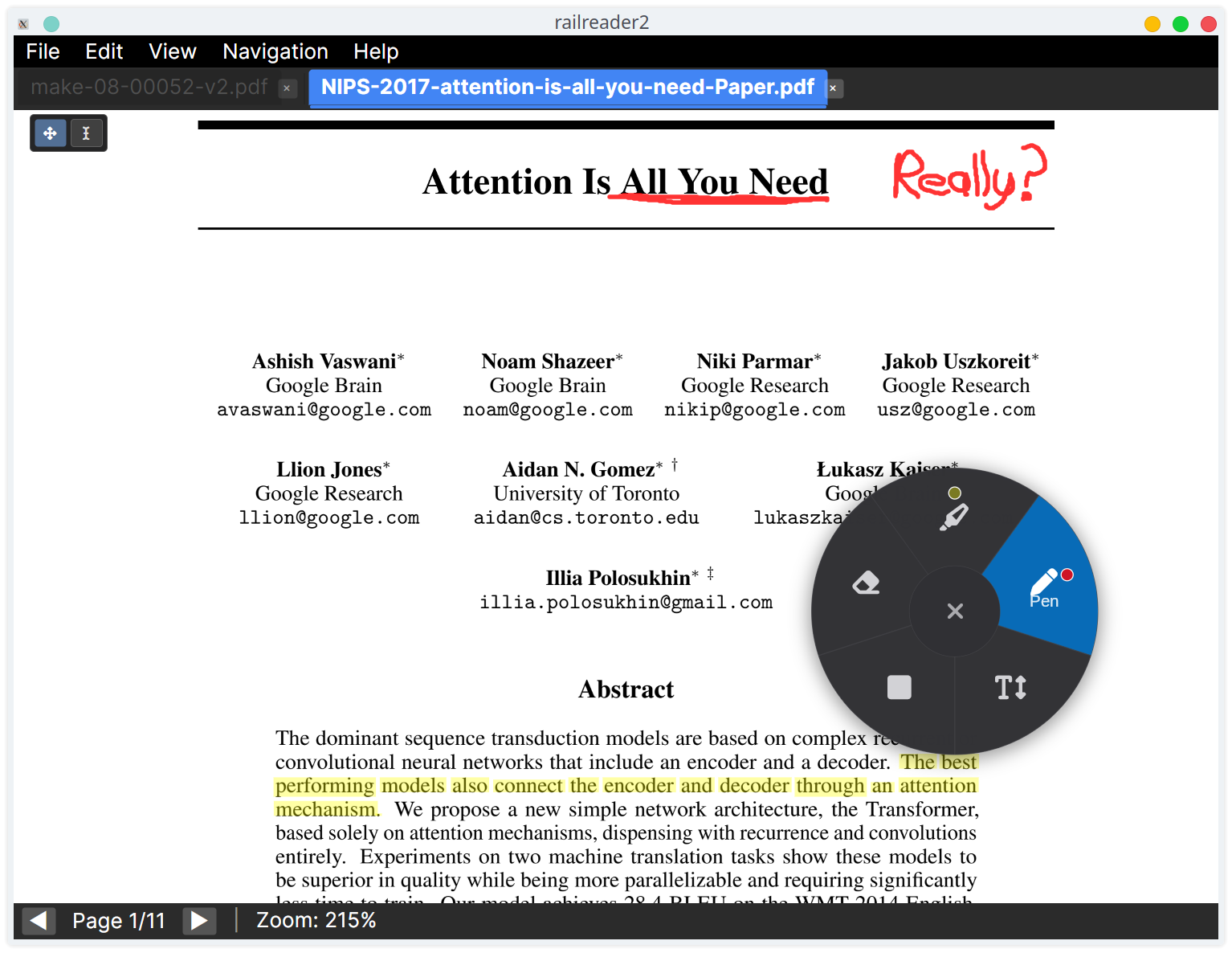
Highlight, underline, strikethrough, squiggly, pen, rectangles, sticky notes, and text boxes from the annotation toolbar — saved as native PDF annotations or a sidecar. Select, move, resize, undo; export or import as JSON or a flattened PDF.
Stay organised
Your whole reading list
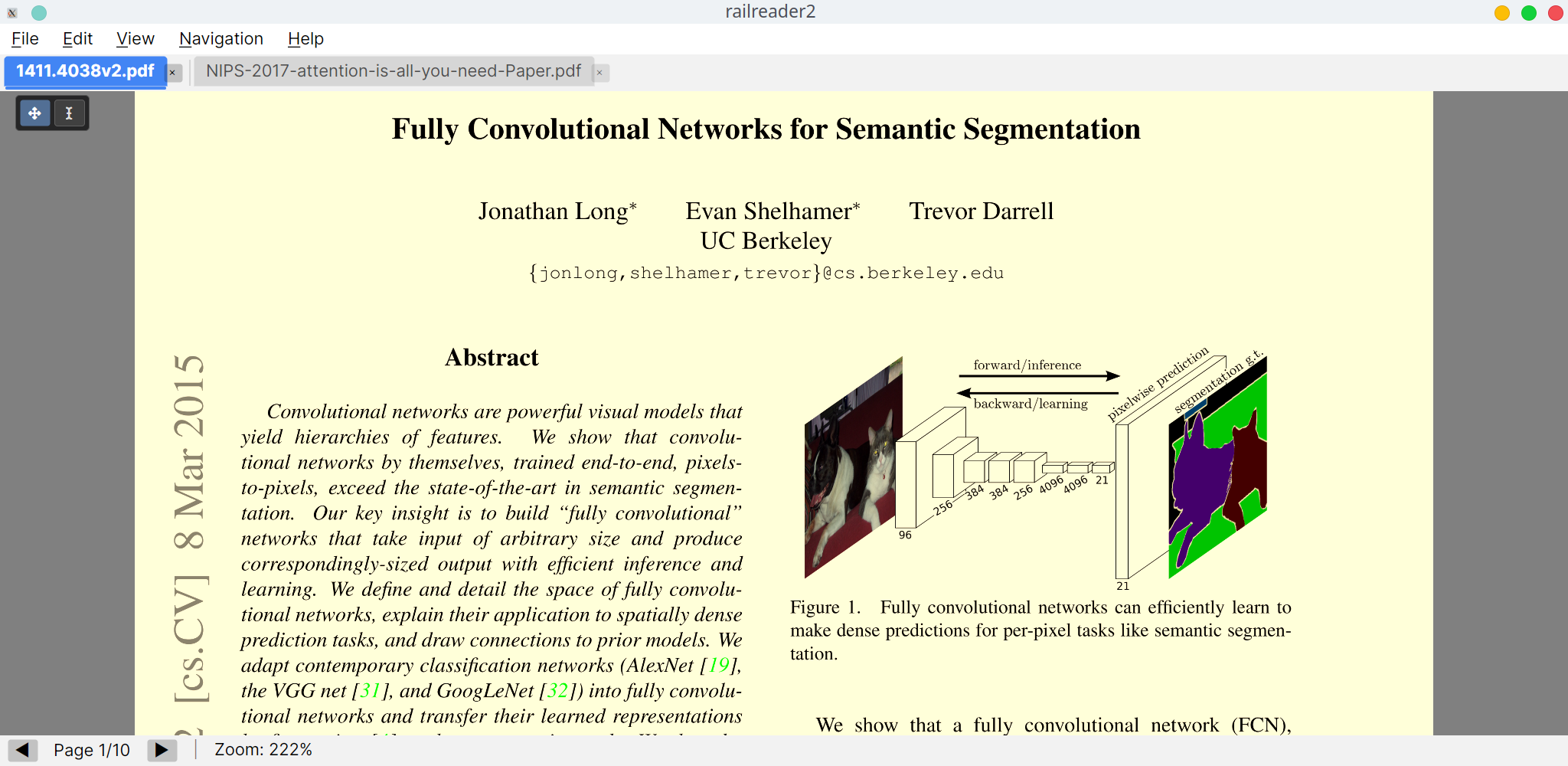
Open many PDFs in tabs, each with its own state — open the same file twice and the two tabs share its caches and annotations while keeping independent positions. One side panel holds the outline, bookmarks, an index of every figure, table and equation, search, comments, and portals — and hands focus back to the page when you jump.
Smaller touches, everywhere
Portals — Linked Context
Link a “see Figure 3” to the figure itself, and it stays in view — docked, or in a detachable always-on-top pop-out window — as you rail-read past the reference. The pop-out is a live viewport, so rail, freeze, and annotation all work inside it. On-page markers show every link; click one to jump.
Freeze Panes
Pin part of a page in place — like Excel’s Freeze Panes — so a header row, a label column, or both stay visible while the rest scrolls. Pick Rows, Columns, or Both from the toolbar’s snowflake button (Z arms both), then click to drop the split. Page-wide and works on any page.
Split & Tear-off Views
See one document at several positions at once: split the editor into side-by-side panes (Ctrl+\) or tear a pane off into its own floating window for a second monitor. Each view has its own page, zoom, and rail — keep a figure in sight while you read the text that discusses it.
View Rotation
Quarter-turn a sideways scan or a wide landscape table (Ctrl+R). In rail mode, press U to make just the current sideways block upright and re-analysed for real per-line detection — press again to reset.
Continuous Scrolling
Opt in from Settings → Rendering to let the mouse wheel flow smoothly across page boundaries in browse mode, instead of jumping page to page. Rail mode stays page-local either way.
GPU-Accelerated Analysis
Optional WebGPU execution for the layout model — roughly 8–10× faster than CPU on supported hardware, with an automatic CPU fallback. Toggle in Settings → Advanced.
Line Highlight Tint
A colour tint on the active line — Auto, Yellow, Cyan, Green, or None, at adjustable opacity. Auto follows the active colour effect.
Semi-Automatic Auto-Scroll
Flows through prose on its own (P) and parks at equations, tables, figures, headings, and column/page breaks — press D/S to continue. Pan and zoom stay live while parked. Speed is zoom-independent and tunable with [ / ].
Jump Mode & Line Focus
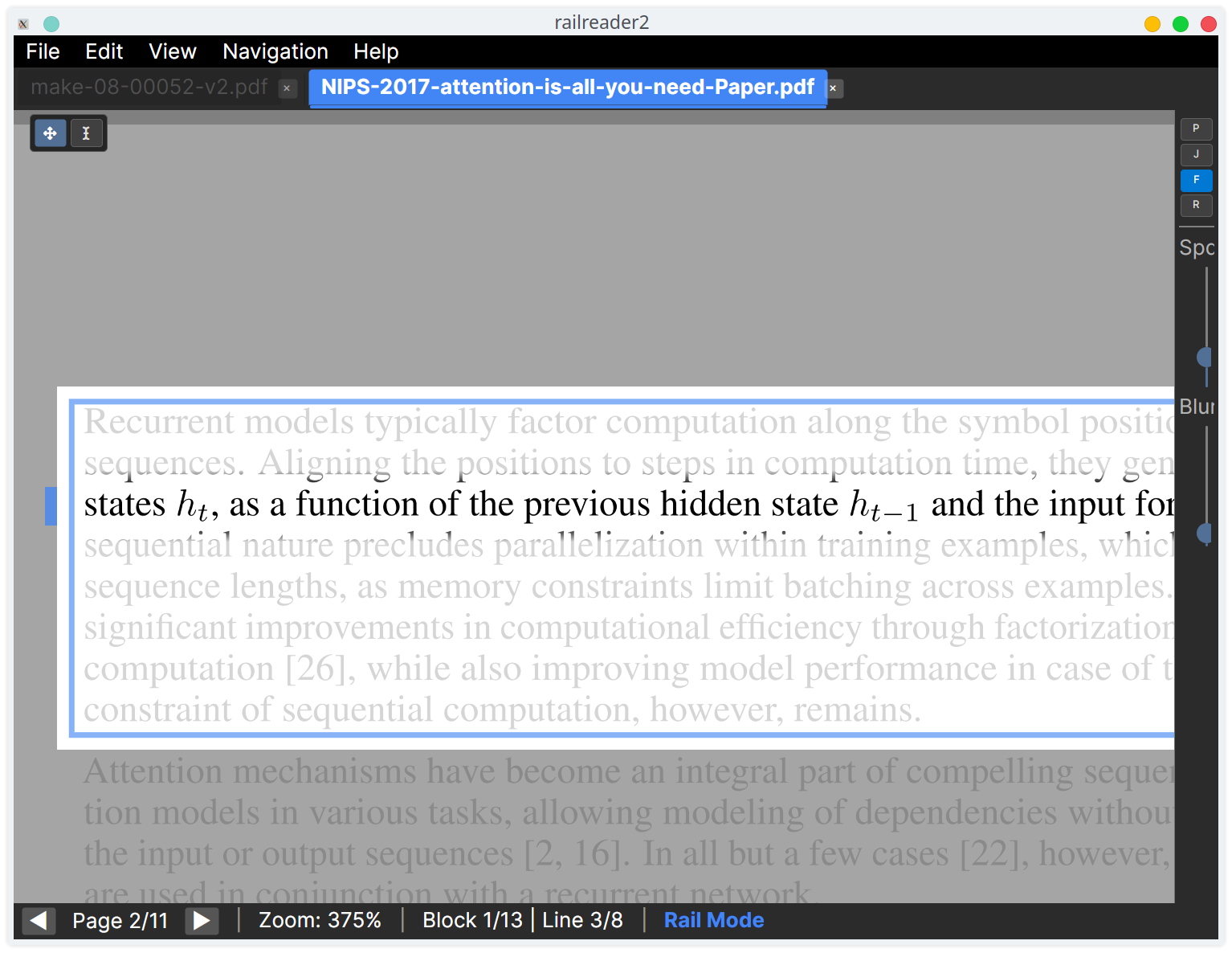
Saccade-style jumps (J) advance by a set fraction of the view. Line-focus dim (F) fades inactive lines; toggle the highlight with H.
Render Quality
PDFium rasterises at a DPI proportional to zoom, up to a configurable preset (default 525 DPI, up to 800 — or Custom). Pan and zoom stay GPU-smooth and sharp.
Configurable Navigation
Choose which block types are navigable and which centre when narrow; tune zoom thresholds, scroll speed, and snap timing. Settings persist.
Margin Cropping
Fit the viewport to the detected content instead of the full page — no wasted whitespace, computed per document so it never clips. Toggle Ctrl+Shift+M.
Named Bookmarks
Bookmark any page with a name and jump to it from the side panel. "Back to previous location" returns you after a jump. Persists across sessions.
Copy as LaTeX
Send any equation, table, or figure to a vision model — LaTeX, Markdown, or a description, straight to the clipboard. Cloud or local API; see the setup guide.
Smooth Zoom & Dark Mode
Every zoom animates over 180ms with cubic ease-out, and rapid inputs accumulate fluidly. A dark UI theme is one click away in Settings.
Text Selection & Copy
Switch to Text Select on the floating toolbar to select and copy text from any page, with clear feedback for the active mode.
Motion Blur
Subtle directional blur on scroll and zoom for perceptual smoothness. Adjust with Shift+[ / ], or turn it off.
Diagnostic Logging
Each session writes a log for troubleshooting. Export it from Help → Export Diagnostic Log to attach to a bug report.
Headless Core Library
All logic lives in a rendering-agnostic RailReader.Core (zero Avalonia/SkiaSharp), fully unit-tested without a display. A standalone CLI reuses it for rendering, extraction, and batch VLM transcription.
Built by a statistics lecturer who reads at high magnification — and almost entirely with an AI coding agent. Read the story →
Five minutes
Getting Started
- Windows (Microsoft Store): Install directly from the Microsoft Store for automatic updates, no SmartScreen warnings, and clean install/uninstall. Note: the Store release may lag behind the GitHub release by a few days due to certification review.
- Windows (standalone) or Linux: Download the latest release from GitHub Releases — an AppImage for Linux or an installer for Windows. The AI layout model is included in all packages.
-
Linux: Make the AppImage executable
(
chmod +x railreader2-linux-x86_64.AppImage) and run it. Windows (standalone): Runrailreader2-setup-x64.exeand follow the installer wizard. - Windows SmartScreen warning (standalone installer only): Windows may show a “Windows protected your PC” dialog because the standalone installer is not code-signed. This does not apply to the Microsoft Store version. To continue: click More info, then Run anyway. If your browser flags the download, choose Keep (Chrome) or Keep anyway (Edge). The full source code is available on GitHub.
-
Open a PDF with
Ctrl+Oor pass it as a command-line argument. Zoom in to activate rail mode and start reading.
Advanced: A standalone headless CLI for automated batch extraction is also available from GitHub Releases.
At your fingertips
Keyboard Shortcuts
| Key | Action |
|---|---|
| General | |
| Ctrl+O | Open file |
| Ctrl+W | Close tab |
| Ctrl+Tab | Next tab |
| Ctrl+Q | Quit |
| Ctrl+, | Settings |
| Ctrl+M | Toggle minimap |
| Ctrl+Shift+M | Toggle margin cropping |
| Ctrl+Shift+O | Open Outline section |
| Ctrl+Shift+B | Open Bookmarks section |
| Ctrl+Shift+I | Open Index section (figures / tables / equations) |
| Ctrl+Shift+H / G / T / E | Jump to next heading / figure / table / equation |
| Ctrl+L | Copy block as LaTeX (VLM) |
| Ctrl+\ / Ctrl+Shift+\ | Split editor / close focused pane |
| Ctrl+R / Ctrl+Shift+R | Rotate view clockwise / counter-clockwise |
| F1 | Keyboard shortcuts |
| Navigation | |
| PgDn / PgUp | Next / previous page |
| Home / End | First / last page |
| Ctrl+Home / Ctrl+End | First / last page (also from menu) |
| Space | Next line (rail mode) or next page |
| View | |
| + / - | Zoom in / out |
| 0 | Fit page to window |
| F11 | Toggle fullscreen |
| Shift+D | Toggle debug overlay |
| Rail Mode | |
| Down / S | Next line |
| Up / W | Previous line |
| Right / D | Scroll forward (hold) |
| Left / A | Scroll backward (hold) |
| Home / End | Line start / end |
| P | Toggle auto-scroll (D/S to continue when parked) |
| J | Toggle jump mode (saccade-style advance) |
| B | Add bookmark for current page |
| ` (backtick) | Navigate back to previous location |
| C | Cycle colour effect on active tab |
| F | Toggle line focus dim |
| H | Toggle line highlight |
| U | Rotate to read the current sideways rail block (press again to reset) |
| Ctrl+Drag | Free pan/zoom in rail mode (release to snap back) |
| Escape | Stop auto-scroll |
| [ / ] | Adjust scroll speed or jump distance (±5) |
| Ctrl+[ / ] | Fine adjust speed or jump distance (±1) |
| Shift+[ / ] | Adjust blur intensity (±0.05) |
| Ctrl+Shift+[ / ] | Fine adjust blur intensity (±0.01) |
| Search & Annotations | |
| Ctrl+F | Open search panel |
| F3 / Shift+F3 | Next / previous match |
| Escape | Stop auto-scroll / close search / cancel tool / exit fullscreen |
| Ctrl+E | Toggle annotation mode |
| Right-click | Block actions (Copy as LaTeX / Markdown / Description / Image) + toggle Annotation Mode |
| Ctrl+Z | Undo annotation |
| Ctrl+Y | Redo annotation |
| Delete | Delete selected annotation (browse mode) |
| Ctrl+C | Copy selected text |